
Sovra AI Windows · Coming soon
Put local AI to work on your projects
Choose a model that fits your PC. Work through an idea in local chat. When it’s time to change a project file, read the edit and decide what gets saved.
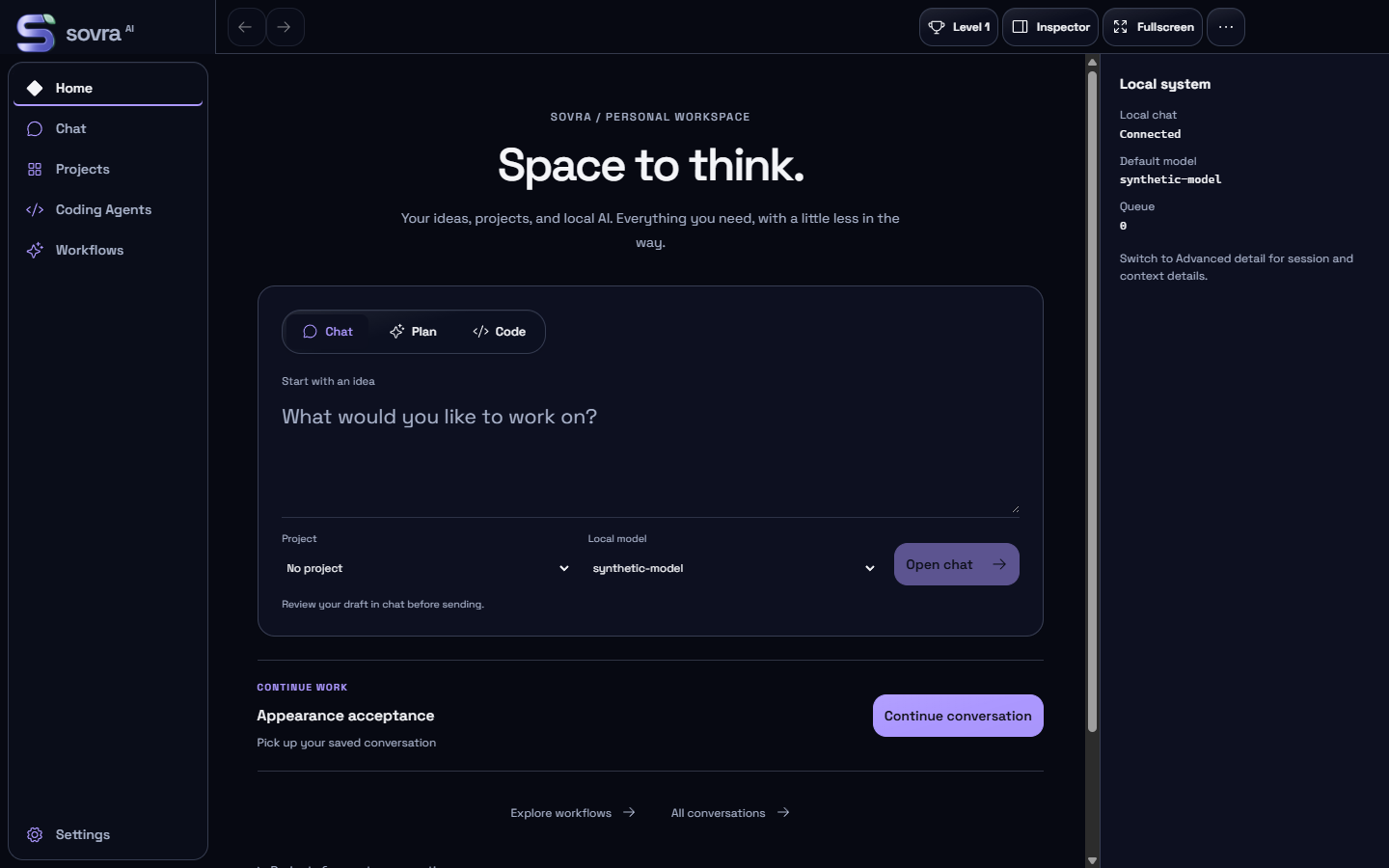
Sovra AI · Perplexity · LM Studio
Why choose Sovra?
Choose Sovra when you want to run a model on your Windows PC and see exactly what will change before you save a project file.
- Sovra AIWindows preview
Keep control of the final file
Check which models fit your PC. Open the pickup guide, compare the original and revised wording, then approve the change.
A verified edit on diskThe reopened guide shows the new Saturday hours and the original weekday note.
See the six screens - Perplexity
Coordinate the update with your team
Bring the shop’s sources and staff into a shared Project. Personal Computer for Windows can also edit files in place.
A shared working guideStaff can work from the same files and project history.
Perplexity’s project guide ↗ - LM Studio
Try the wording with local models
Attach the guide and ask a local model for a Saturday revision. Try another model to see which draft reads better.
Drafts you can compareLM Studio also offers Bionic, a separate app for work on project files.
Document chat ↗ Bionic ↗
The Sovra walkthrough uses a manually entered revision from the desktop development build. The other examples follow each vendor’s documentation.
Compare all 33 alternatives
Find a workspace
Choose a product to compare it with Sovra for the work you want to do.
Sovra vs. Perplexity
When to choose Sovra
You need to turn a private brief into a project edit.
With a downloaded Ollama model running on your PC, you can draft locally, see the proposed edit, and decide whether to apply it.
When to choose Perplexity
You need a report on a changing topic. Deep Research follows fresh web sources and revises its search as it learns.
Perplexity sources
Research & sources
Local workspaces
Workflow builders
Personal agents
Cloud workspaces
Coding agents
Comparison updated November 24, 2026. Each entry links to vendor documentation. We haven’t tested these products side by side for speed, accuracy or reliability.
Choosing a local model
What fits on your machine?
A model’s download size tells you how much disk space it takes. Sovra also estimates whether it will fit in the memory available on your PC.
Once you’ve tested a model, its local run history gives you another way to compare. The Models screen above shows a recommendation and a caution on the same machine.
Project walkthrough
Update the Saturday pickup guide
A shop is changing its Saturday hours and entrance. The weekday instructions should stay as they are.
- Before
- Pick up your order at the front desk.
- After approval
- For Saturday pickup, bring your order number to the side entrance between 10 am and noon.
The original stayed on disk until approval. Reopening the guide confirmed the Saturday change and the existing weekday note.
Find the linked Weekend pickup project in Projects.1 / 6
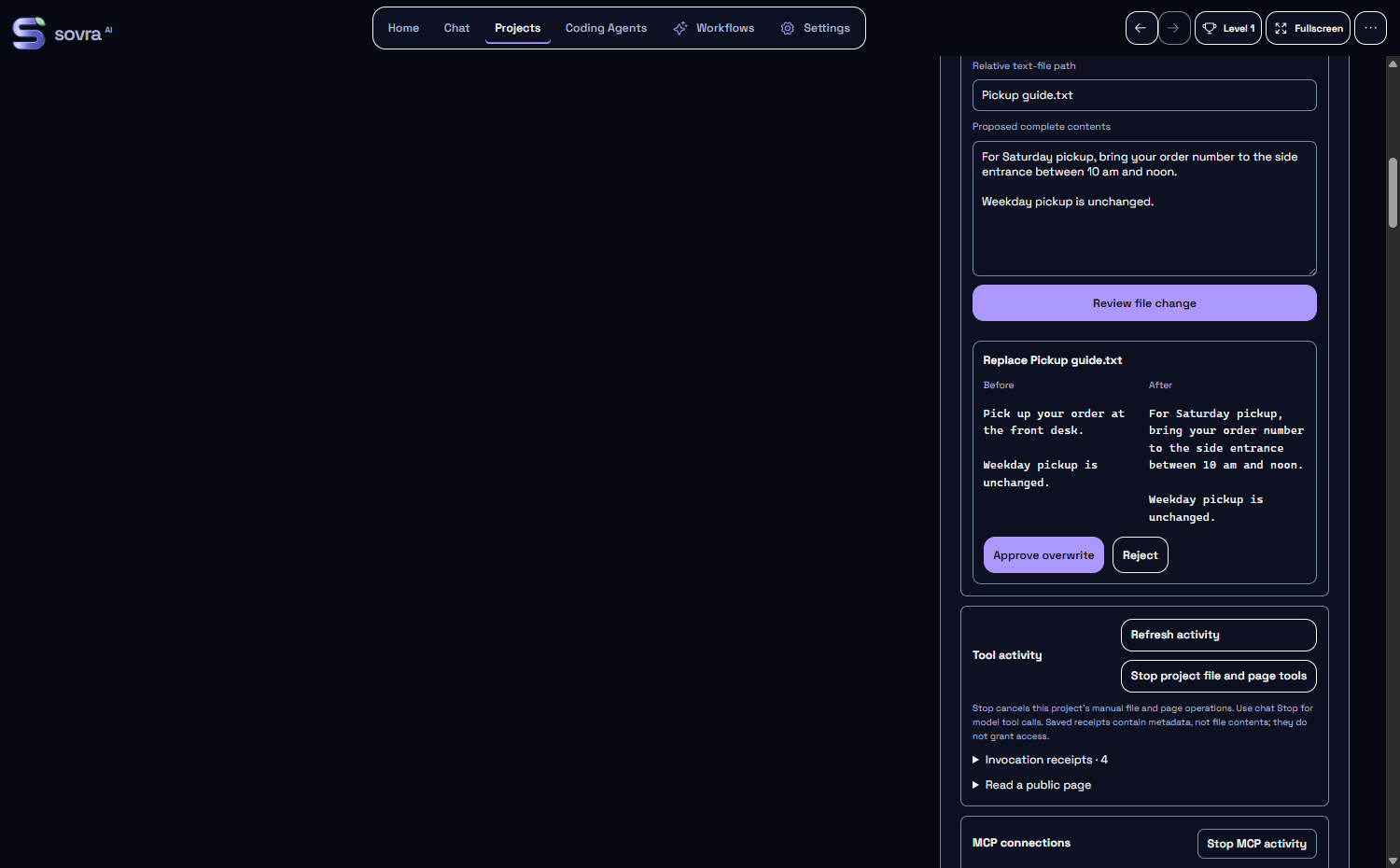
Six screens from the desktop development build. The walkthrough used a sample project and a manually entered revision.
Which features are in the Windows preview?
The unsigned Windows preview includes local Ollama chat, model comparison and reviewed file changes. New layouts and reusable workflows are in development. Stage labels identify the build behind each screen.
Paired-phone access and complete profile recovery still need end-to-end testing. Using an existing ChatGPT or Claude subscription directly in Sovra remains unconfirmed.